What Really Happens When a Next.js Page Loads?
A clear, step-by-step look at what Next.js actually does behind the scenes, from the request hitting the server to the page becoming interactive in your browser.
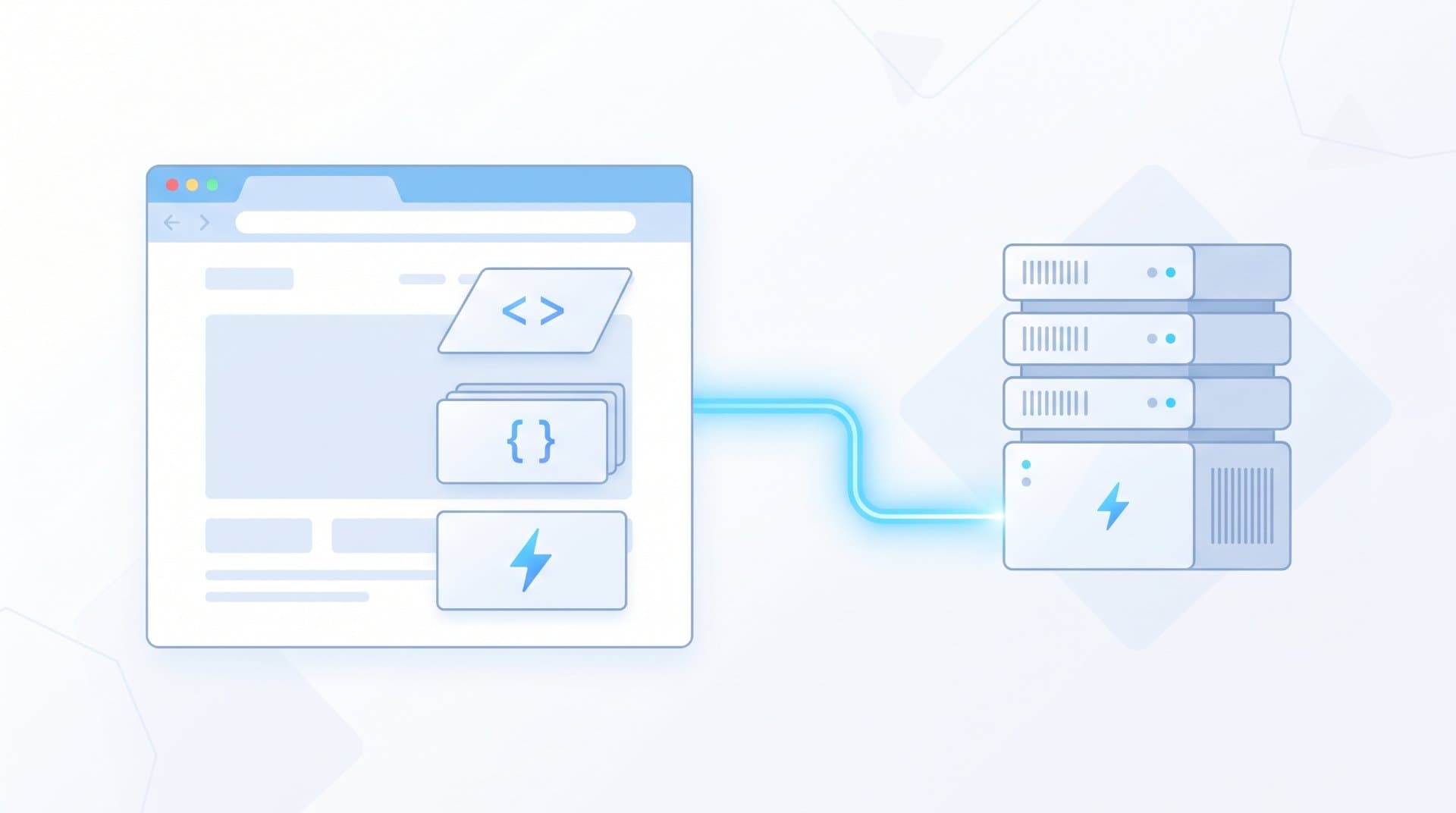
You type a URL, hit enter and a Next.js page shows up on your screen. That part feels instant and simple. But a lot happens between your click and the page becoming usable.
This article walks through that process step by step, using the App Router, which is the default and recommended way to build Next.js apps since Next.js 13 and the standard choice for new projects. Where it matters, we'll also point out how the older Pages Router does things differently.
Step 1: The Request Leaves Your Browser
When you visit a page, your browser sends an HTTP request to a server. If you're using Vercel or a similar host, that request usually hits an edge network first, which decides how to handle it. If you're self-hosting, it goes straight to your Node.js server.
At this point, Next.js hasn't done anything yet. This is just normal web traffic finding its way to the right place.
Step 2: Next.js Matches the Route
Once the request arrives, Next.js needs to figure out which page should respond to it. In the App Router, routing is based on folders inside the app directory. A request for /blog/hello-world maps to a page.tsx file inside app/blog/[slug]/.
This step also resolves any layouts that wrap the page. Layouts in the App Router are shared across multiple pages and don't re-render when you move between pages that share them. This is one reason the App Router can feel faster than the old Pages Router, where every navigation re-ran the whole page tree.
Step 3: Server Components Run First
This is where things get different from older versions of Next.js and where a lot of confusion comes from.
By default, every component in the App Router is a Server Component. That means the component's code runs on the server, not in the browser. If your page fetches data from a database or an API, that fetch happens here, on the server, before any HTML is sent to you.
A simple example:
// app/posts/page.tsx
async function PostsPage() {
  const posts = await fetch('https://api.example.com/posts').then(res => res.json());

  return (
    <ul>
      {posts.map(post => <li key={post.id}>{post.title}</li>)}
    </ul>
  );
}

export default PostsPage;
There's no useEffect, no loading spinner logic and no client-side data fetching library needed here. The component just fetches and renders. The code for this fetch never gets sent to the browser, which keeps the JavaScript bundle smaller.
Step 4: Client Components Are Marked, Not Run Yet
Not everything can happen on the server. If a component needs interactivity, like a button click, a form input or state that changes in the browser, it needs to be a Client Component. You mark this with a "use client" directive at the top of the file.
// app/posts/LikeButton.tsx
"use client";

import { useState } from 'react';

export function LikeButton() {
  const [likes, setLikes] = useState(0);
  return <button onClick={() => setLikes(likes + 1)}>Likes: {likes}</button>;
}
At this stage in the process, Next.js knows this component exists and where it fits in the tree, but it hasn't made it interactive yet. That comes later, in the browser.
Step 5: Next.js Builds the React Tree and Streams It
Instead of waiting for the entire page to finish rendering before sending anything, Next.js can stream the response. This means parts of the page that are ready get sent to your browser right away, while slower parts (like a section waiting on a slow API call) are sent in afterward.
This is usually paired with <Suspense> boundaries, which let you show a loading state for just one part of the page instead of blocking the whole thing.
<Suspense fallback={<p>Loading comments...</p>}>
  <Comments postId={id} />
</Suspense>
The practical effect: the reader sees content sooner, even if some parts of the page are still loading behind the scenes.
Step 6: The Browser Receives HTML, Not Just a Blank Shell
One common misunderstanding about older single-page apps is that the browser gets an almost empty HTML file and JavaScript builds the whole page after that. Next.js doesn't work that way.
The browser receives actual, readable HTML from the server. This matters for a few practical reasons:
Search engines can read your content without running JavaScript.
The page has visible content the moment it arrives, even before it's interactive.
People on slow connections or older devices still see something useful right away.
Alongside the HTML, Next.js also sends a special data format called the React Server Component payload. This isn't just plain HTML it also tells React how to reconstruct the component tree in the browser so it can attach interactivity where needed.
Step 7: Hydration Makes the Page Interactive
This is the step people usually mean when they say "the page loaded" in a technical sense, even though the visible content already showed up earlier.
Hydration is the process where React takes the static HTML that's already on the screen and attaches JavaScript behavior to it, specifically for the Client Components. Before hydration, that "Like" button you saw earlier looks like a button, but clicking it does nothing. After hydration, the onClick handler is wired up and it works.
One detail worth knowing: only Client Components get hydrated. Server Components never run in the browser at all, so there's no JavaScript for them to hydrate. This is a big part of why Next.js apps built with the App Router can ship noticeably less JavaScript than fully client-rendered apps.
Step 8: Navigation After the First Load Works Differently
Everything above describes the first time a page loads. After that, if you click a <Link> to go to another page in the same app, Next.js doesn't do a full page reload. Instead, it fetches just the new content it needs and swaps it in, while keeping shared layouts (like a header or sidebar) exactly where they are.
This is why navigating around a Next.js site usually feels faster after the first page load the browser isn't starting from scratch each time.
Server-Side Rendering, Static Generation and Caching: Where They Fit In
The steps above describe the general flow, but when a page's data is fetched depends on how it's configured:
In the App Router, you control this mostly through the cache option on fetch() calls, rather than through separate functions like getStaticProps (which is how the older Pages Router handles it).
fetch(url, { cache: 'force-cache' });          // similar to static generation
fetch(url, { cache: 'no-store' });             // fresh data on every request
fetch(url, { next: { revalidate: 60 } });      // regenerate at most every 60 seconds
A Few Things People Often Get Wrong
"Server Components run on every request, like SSR."
Not necessarily. Whether they re-run depends on the caching mode you chose for that page's data fetches, not on the fact that it's a Server Component.
"Client Components run only in the browser."
Not quite. Client Components are still rendered once on the server for the initial HTML, then hydrated in the browser. "Client Component" describes where it can run and re-render after hydration, not that it skips the server entirely.
"More Server Components always means a faster page."
Usually, yes, because less JavaScript ships to the browser. But if a Server Component is waiting on a slow, un-cached data fetch, it can slow down the whole response unless it's wrapped in a Suspense boundary that lets the rest of the page load first.
What This Means in Practice
If you're debugging a slow Next.js page, this lifecycle tells you where to look:
Slow before anything appears on screen? Check your Server Component data fetching and caching settings.
Content appears but buttons don't work yet? That's the hydration window check how much JavaScript your Client Components are shipping.
Page feels slow only on the very first visit but fast afterward? That's expected. First load includes routing, rendering and hydration; later navigations reuse more of what's already loaded.
Understanding these steps doesn't just satisfy curiosity. It directly helps you decide where a component should live, whether a piece of data needs to be fetched on the server or the client and why a page might feel fast to look at but slow to actually use.
FAQs
Does every component need "use client"?
No. Only components that use browser-only features like useState, useEffect or event handlers need it. Everything else should stay a Server Component by default.
Is hydration the same as page load?
No. The page's HTML can appear before hydration finishes. Hydration is specifically about making the existing HTML interactive, not about the content appearing.
Does the App Router replace the Pages Router?
The App Router is the current default and recommended approach for new projects. The Pages Router still works and is supported, but new features are built primarily for the App Router.
Related Topics:
Share this story with your network
Direct citation and sharing for this investigative report.

Noman Maken
Senior Software Engineer
I’m Noman Maken, a Senior Software Engineer at UMT and a freelance systems architect with 8+ years of experience. I build scalable software, APIs, databases, and modern web applications. My main expertise is in Next.js, React, Node.js, databases, microservices, and Generative AI. I focus on writing clean, secure, reliable, and practical software.
Related Coverage & Dispatches
More in Technology →
Why Your Phone Storage Fills Up So Quickly and How to Free Space
Explains why phone storage gets full even when you did not install anything new, including photos, app cache, System Data and hidden trash folders. Gives simple steps to free space on iPhone and Android and what to do when nothing seems to work.
 View Point SpotOct 5, 2026
What to Do When a Software Update Makes Your Device Slower
Many people see their phone or computer become slow right after a software update. This article explains why it happens, which slowdowns are normal and go away alone and which need action. It gives simple steps for iPhone, Android and Windows, plus mistakes to avoid and when to ask for help.
View Point SpotOct 5, 2026
Internet Provider Keeps Raising Your Bill? Here Is What You Can Do
This article explains why internet providers raise prices again and again and what you can do about it. It covers reading your bill, finding the real reason for the increase, asking for a better deal, lowering your plan and switching provider. It also explains the mistakes people make when they negotiate.
View Point SpotOct 5, 2026Reader Discussion (0)
No comments yet. Be the first to start the discussion!