Why Your Phone Storage Fills Up So Quickly and How to Free Space
Explains why phone storage gets full even when you did not install anything new, including photos, app cache, System Data and hidden trash folders. Gives simple steps to free space on iPhone and Android and what to do when nothing seems to work.
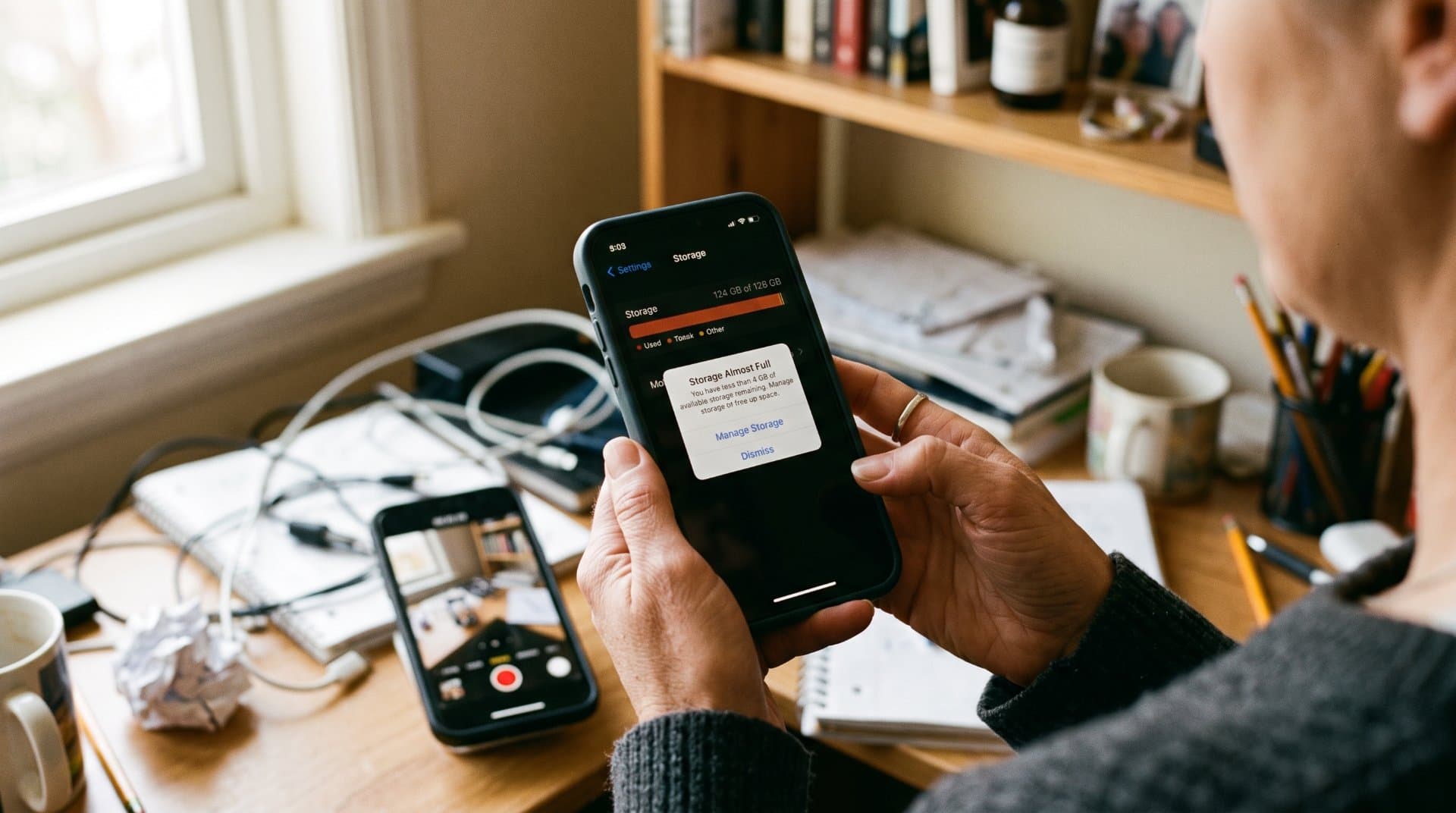
You open camera to record something and phone say "Storage Almost Full." Or an update will not install. Or the phone just become slow. Many people face this and most of them don't know what exactly is eating the space.
This article explain where the storage go and how you can get it back, for both iPhone and Android.
The Problem
Phone storage is fixed. You cannot make it bigger like a computer hard drive. So every photo, video, app, chat file and update use a piece of it and it only go down.
Photos and videos usually take around 40–60% of phone storage, but they are not the only thing. A lot of space goes in places you never open.
Why It Happens
1. Photos and videos. Modern cameras make big files. One 4K video can be very large. Burst photos, screenshots and duplicates add more.
2. Cache. Apps save temporary data so they open faster. Social media, streaming and browser apps do this a lot. Over weeks and months it grows in small steps through many background processes, so you never notice one big moment.
3. System Data (iPhone). On iPhone, open Settings > General > iPhone Storage and you may see a big grey part called System Data. It includes cached files, temporary downloads, system logs and other files iOS creates while you use the phone. Older iOS versions call it "Other." You cannot tap on it and delete it directly. Some people report it growing to tens of GB, which looks strange on a phone that seems almost empty.
4. Chat app media. WhatsApp, Telegram, Messages. Every photo, video and voice note people send you is saved on your phone. Group chats are the worst.
5. Deleted files that are not really deleted. This one surprise many people. On iPhone, deleted photos go to the Recently Deleted album and stay up to 30 days, still using storage. On Android, trash folders in Google Photos, Files by Google and your gallery app can also keep old files. So you delete 50 photos and nothing change.
6. Offline downloads. Offline music, podcasts, Netflix downloads and offline maps in Google Maps. You download for one trip and forget.
7. Updates. Old downloaded update files can sit there. Also, an update itself need free space to install, so a full phone can block it.
What Usually Goes Wrong
People delete a few photos and expect big change. Then nothing happen because the photos are still in Recently Deleted or trash.
People think buying more iCloud storage will fix it. Cloud storage and phone storage are separate, so extra iCloud space never adds physical room on the phone. It only helps if you move things to the cloud and let the phone keep smaller copies.
People delete apps they like but never check which app is really big.
People install random "cleaner" apps. Be careful. Phone already has built-in tools and many cleaner apps are just full of ads.
The Solution
First step is the same on every phone: find what is big before you delete anything.
On iPhone
Go to Settings > General > iPhone Storage. Wait a few seconds to load. You will see a list of apps, biggest first, plus some recommendations from Apple.
Tap a big app. You can choose Offload App, which frees the space the app uses but keeps its documents and data. Good for apps you use rarely.
Turn on Optimize iPhone Storage in Settings > Photos. Full-resolution photos move to iCloud and smaller versions stay on the phone. You need enough iCloud space to hold your whole library, so check that first.
Open Photos > Albums > Recently Deleted and delete everything there if you are sure.
Clear Safari history and website data (Settings > Apps > Safari on newer iOS or Settings > Safari on older). Also check Messages for big attachments.
For System Data, restart the phone first. Also update iOS, because updating cleans up leftover installer data from your last update. If one app has huge "Documents & Data," delete and reinstall it, which clears its cache. Make sure the app data is backed up or synced before you do this.
On Android
Menus are little different on Samsung, Xiaomi, Pixel and others, but the idea is same.
Go to Settings > Storage. See which category is biggest, then check apps one by one.
Use Files by Google. It can clear temporary app files, delete duplicate files and remove recommended files, screenshots and unused apps. Remember, files deleted this way are gone for good, so read the list first.
In Google Photos, tap your profile picture and choose Free up space on this device. It removes local copies of photos and videos that are already backed up and shows how much you will recover before you confirm.
Clear cache for big apps: Settings > Apps > pick app > Storage > Clear cache. On many Android devices you can clear cached data inside each app without deleting the app.
Delete offline maps you don't use and old downloads in the Downloads folder.
Check trash folders in Google Photos, Files by Google and your gallery app.
If your phone has a microSD slot, you can move some data there.
Chat apps (both phones)
Open the app's storage settings (in WhatsApp it is Settings > Storage and data > Manage storage). Sort by size and delete big videos from old group chats. This alone can free several GB for some people.
What to Check After
Go back to the storage screen and see if the number really changed.
Try the thing that failed before: take a video or start the update.
Look again after a few days. If System Data or cache is growing again fast, one app is probably the reason. Find it and deal with it.
When the Solution May Not Work
Sometimes you do everything and the phone still show almost full. That can happen if:
Your phone is 64GB or less and you use it for video. Cleaning only helps for a short time. Then you need to move media to cloud or a computer regularly or buy a phone with more storage next time.
System Data stays huge even after restart and update. This is a known complaint on iPhone. Some reports from late 2025 into 2026 say it is still happening. In that case contact Apple Support before doing anything big.
A factory reset is the last option, not the first. If you go that way, back up first, because erasing removes your data permanently.
Simple Habit to Stop It Coming Back
Once a month, spend 10 minutes. Check storage, sort apps by size, empty trash folders, clear big chat media. People who did a quick manual clean-up of 10 to 15 minutes report getting several GB back, so it is worth it.
FAQs
Why is my storage still full after I deleted photos?
Because they probably still sit in Recently Deleted (iPhone, up to 30 days) or in a trash folder (Android). Empty those folders.
Is it safe to delete System Data?
You can't delete it directly and the phone needs some of it to work. Restart, update, clear Safari data and fix big apps. That's the safe way.
Does buying more iCloud or Google storage give my phone more space?
No. It gives more cloud space. It only helps when you move photos there and let the phone keep smaller copies.
Does clearing cache delete my data?
Clearing cache on Android does not delete your account or settings for that app. The app may open little slower the first time because it rebuilds the cache.
How much free space should I keep?
There is no official number I found for every phone, but keep enough room for updates and camera. If an update fails or the camera complain, you are too low.
Share this story with your network
Direct citation and sharing for this investigative report.

View Point Spot
Editor-in-Chief
View Point Spot is a place for ideas, stories, insights and different points of view. We share useful, interesting and easy-to-understand content across a wide range of topics, helping readers discover something new and see the world from a different perspective.
Related Coverage & Dispatches
More in Technology →
What to Do When a Software Update Makes Your Device Slower
Many people see their phone or computer become slow right after a software update. This article explains why it happens, which slowdowns are normal and go away alone and which need action. It gives simple steps for iPhone, Android and Windows, plus mistakes to avoid and when to ask for help.
View Point Spot1 hours ago
Internet Provider Keeps Raising Your Bill? Here Is What You Can Do
This article explains why internet providers raise prices again and again and what you can do about it. It covers reading your bill, finding the real reason for the increase, asking for a better deal, lowering your plan and switching provider. It also explains the mistakes people make when they negotiate.
View Point Spot2 hours ago
How Does Cloud Storage Actually Keep Your Files Safe?
Cloud storage relies on encryption, redundancy and access controls to protect your files. Here's how each layer works and where the real risks still are.
 Noman MakenSep 10, 2026
Reader Discussion (0)
No comments yet. Be the first to start the discussion!