What to Do When a Software Update Makes Your Device Slower
Many people see their phone or computer become slow right after a software update. This article explains why it happens, which slowdowns are normal and go away alone and which need action. It gives simple steps for iPhone, Android and Windows, plus mistakes to avoid and when to ask for help.
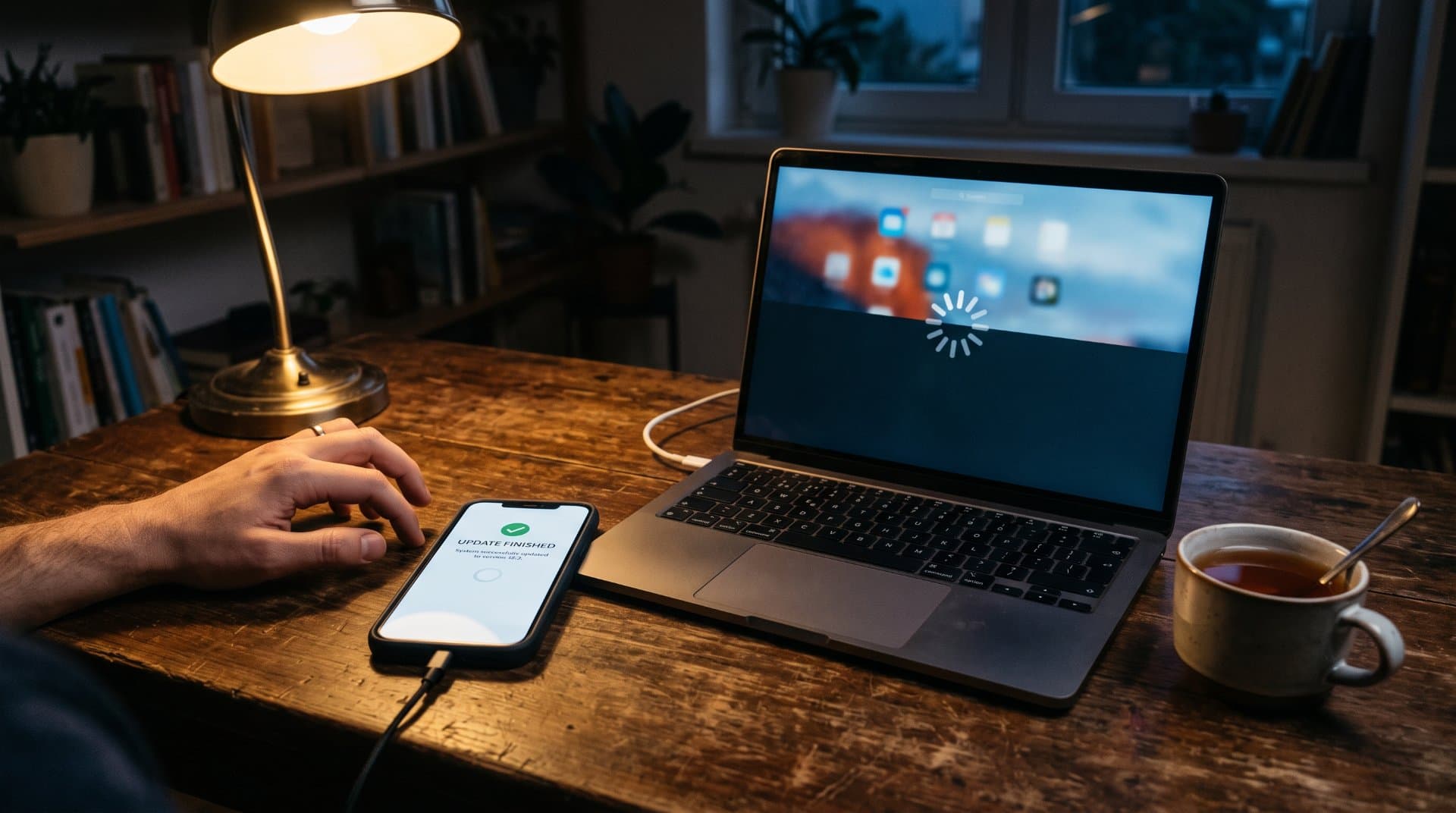
You install the update, restart and now your phone or computer feels slow. Apps open late. Scrolling is not smooth. Battery goes down fast. Many people face this and it can be annoying, because you updated to make things better, not worse.
Good news is, most of the time it can be fixed. Sometimes you only need to wait a little. Sometimes you need to clean storage or update apps. And sometimes the update itself has a bug and you must wait for the company to fix it. This guide explains how to know which one is your case.
The Problem
After an update, the device feels slower than before. It may be hot. Battery may drain faster. Apps may freeze or close by themselves. Sometimes only one thing is slow, like startup on a PC or the keyboard on a phone.
Why It Happens
There are a few common reasons.
1. Background work after the update. After a big update, an iPhone is indexing content, syncing data, processing photos and doing other background tasks. Windows does similar thing. After a feature or cumulative update, Windows quietly finishes a batch of background chores and Microsoft Defender re-scans files. While this work is running, the device use power and memory, so it feels slow. This is the most common reason and it goes away alone.
2. Not enough storage. Updates need free space to install and then the system need space to work. If your storage is almost full, everything becomes slow. One article that quotes Apple Support says to keep at least 1 GB free on iPhone and also suggests keeping around 10% of total storage free as a general rule. Treat that 10% as a rule of thumb, not an official number.
3. Old apps. Apps that worked well before may start crashing after an update and they usually need their own update. An old app can also use too much power or memory in the background.
4. Old hardware or old battery. New software is often made with newer devices in mind. Your device may still be supported, but not run it as smooth as before. On iPhone, the battery can lose its ability to give maximum power as it ages and iPhone manages performance to protect the phone from unexpected shutdowns. So a slow phone after update may be a tired battery and the update only made you notice it.
5. A bug in the update. Sometimes it is not your fault and not your device. In spring 2026, for example, many Pixel owners reported slow and laggy phones after the March and April updates and at that time Google had not acknowledged the problem. On Windows, Microsoft released an out-of-band fix in July 2026 (KB5121767) for a limited group of PCs that had a driver problem with an Intel component, according to a report on the update. It was not for every PC, which is a good example of how some slowdowns only touch certain hardware.
Step 1: Wait 1 to 2 days (if the update is new)
This sounds too simple, but it works for many people. In most cases performance becomes stable within 24 to 48 hours after the update.
To help the background work finish faster:
Keep the device plugged in to charger
Keep it connected to Wi-Fi
Restart it once after the first day
Do not judge the update on the first hour
If it is still slow after two or three days, go to the next steps.
Step 2: Restart the device
A normal restart clears small problems that stay after an update. Google also says to restart the phone after each troubleshooting step, to see if that step fixed the issue.
Step 3: Check for a newer update
Companies often fix problems after a big release. So even if you just updated, check again.
iPhone: Settings > General > Software Update
Android / Pixel: Settings > System > Software update
Windows 11: Settings > Windows Update > Check for updates. Also open Advanced options > Optional updates and install driver updates if any.
At time of writing (October 2026), iOS 27 is new and Apple released iOS 26.7 on the same day, as the default update, with iOS 27 shown as optional update. So if your iPhone feels bad on the new version, you can read what is offered before you choose. The version numbers will change, but the idea is same.
Step 4: Update your apps
Open the App Store or Google Play and update all apps. Old apps are a very common reason for lag and crashes after an update. Keep in mind that updating all apps at once can make the phone warm and slow for a short time, so do it on charger.
Step 5: Free up storage
Check how much space is left.
iPhone: Settings > General > iPhone Storage
Android: Settings > Storage
Windows 11: Settings > System > Storage. Run Storage Sense to remove temp files and old update files.
Delete apps you do not use, move photos and videos to cloud or computer and clear big downloads. For a phone, getting storage under almost-full to at least some free space can make a big difference.
Step 6: Check the battery (phones)
If your phone is two or three years old or more, check the battery.
iPhone: Settings > Battery > Battery Health. You can see maximum capacity and whether performance management is applied.
Android: Battery health screens are different by brand. On many phones it is under Settings > Battery or in the phone's Care app.
If battery health is low, a new battery can bring back speed. This costs much less than a new phone.
Step 7: Check apps one by one (Android and Windows)
If the slow problem is still there, one app may be the cause.
Android/Pixel: Google suggests restarting in Safe mode. If the phone is fast in Safe mode, a downloaded app is the problem. Remove apps you installed most recently, one at a time and restart after each.
Windows: Open Task Manager and look at which program uses high CPU or disk. Also check startup apps and run a quick scan in Windows Security to make sure it is not malware.
Step 8: Remove the update (Windows only, with care)
On Windows, if the PC got slow right after one specific update, you can uninstall it. Go to Settings > Windows Update > Update history > Uninstall updates and click Uninstall next to the update. Microsoft community staff also suggest this when one update clearly hurt performance and they ask people to report the problem through the Feedback Hub app.
Please remember, this is a temporary fix. Security updates protect your PC. After the company fixes the problem, install updates again. If you can, pause updates for a short time only, not forever.
Step 9: Last options
Back up first. Always.
Factory reset. Google lists this as a last step. It erases all data, so back up before. It reinstalls the system clean and can remove deep software problems.
Go back to old version (iPhone). This is time-sensitive, because Apple usually stops signing older iOS versions soon after a new release. Often it is not possible at all, so do not plan on it.
Common Mistakes
Judging too early. The first few hours are the slowest.
Installing "speed booster" or "cleaner" apps. Most do not help and some slow the phone more or show too many ads. Some are even unsafe.
Resetting too fast. A factory reset is for the end of the list, not the start.
Ignoring storage. Many slow devices are just full.
Staying without updates for long time. Removing a bad update is fine for a short time, but old software can have security holes.
Blaming the update when it is the battery or old hardware. Check both.
When These Steps May Not Work
Sometimes the device is simply too old for the new version. It may be supported on paper, but being supported does not mean it will run at its best. In that case, the update may stay heavy for your hardware. You can wait for later small updates, which sometimes make things lighter or accept that a battery change or a new device may be needed.
Also, if the problem is a real bug in the update, none of your steps can fully fix it. You must wait for the company to release a fix. Check the release notes or official support pages from Apple, Google or Microsoft. On Windows, Microsoft keeps a release health page with known issues.
When to Ask for Help
Contact support or visit a service store, if:
The device is slow even after a factory reset
The device is very hot or the battery swells or drains in minutes
The device restarts again and again or gets stuck
Battery health shows "degraded" or a service message
You see the problem on many devices from the same company after the same update (report it using the feedback tool)
What to Check After Fixing
Use the device for a normal day. Open your usual apps. See if the heat is gone, battery is normal and apps open as before. If it is better after one fix, stop there. Do not keep changing settings.
FAQs
Is it normal for a phone to be slow after an update?
Yes, for a short time. The device does background work after the update. It usually settles in a day or two. If it is still slow after several days, follow the steps above.
Do companies make old devices slow on purpose?
It is a common worry. Apple has a performance management feature that slows some tasks when an old battery cannot give enough power, to avoid sudden shutdown. Apple explains it on its support page and you can check it in Battery Health. Apart from that, slowdowns are mostly from heavier software, full storage and old apps.
Can I remove an update on my phone?
On iPhone it is usually very hard and often not possible after a short time. On Android it depends on the brand and is not simple. On Windows, you can uninstall many updates from Update history.
Will a factory reset fix a slow phone after an update?
It may help if the problem is in settings, leftover files or app conflict. It will not fix a weak battery, old hardware or a bug in the update itself. Back up first.
Should I wait before installing big updates next time?
Many people do this. Waiting one or two weeks lets the company fix early bugs and you can read what other users report. Do not wait too long if the update has important security fixes.
Share this story with your network
Direct citation and sharing for this investigative report.

View Point Spot
Editor-in-Chief
View Point Spot is a place for ideas, stories, insights and different points of view. We share useful, interesting and easy-to-understand content across a wide range of topics, helping readers discover something new and see the world from a different perspective.
Related Coverage & Dispatches
More in Technology →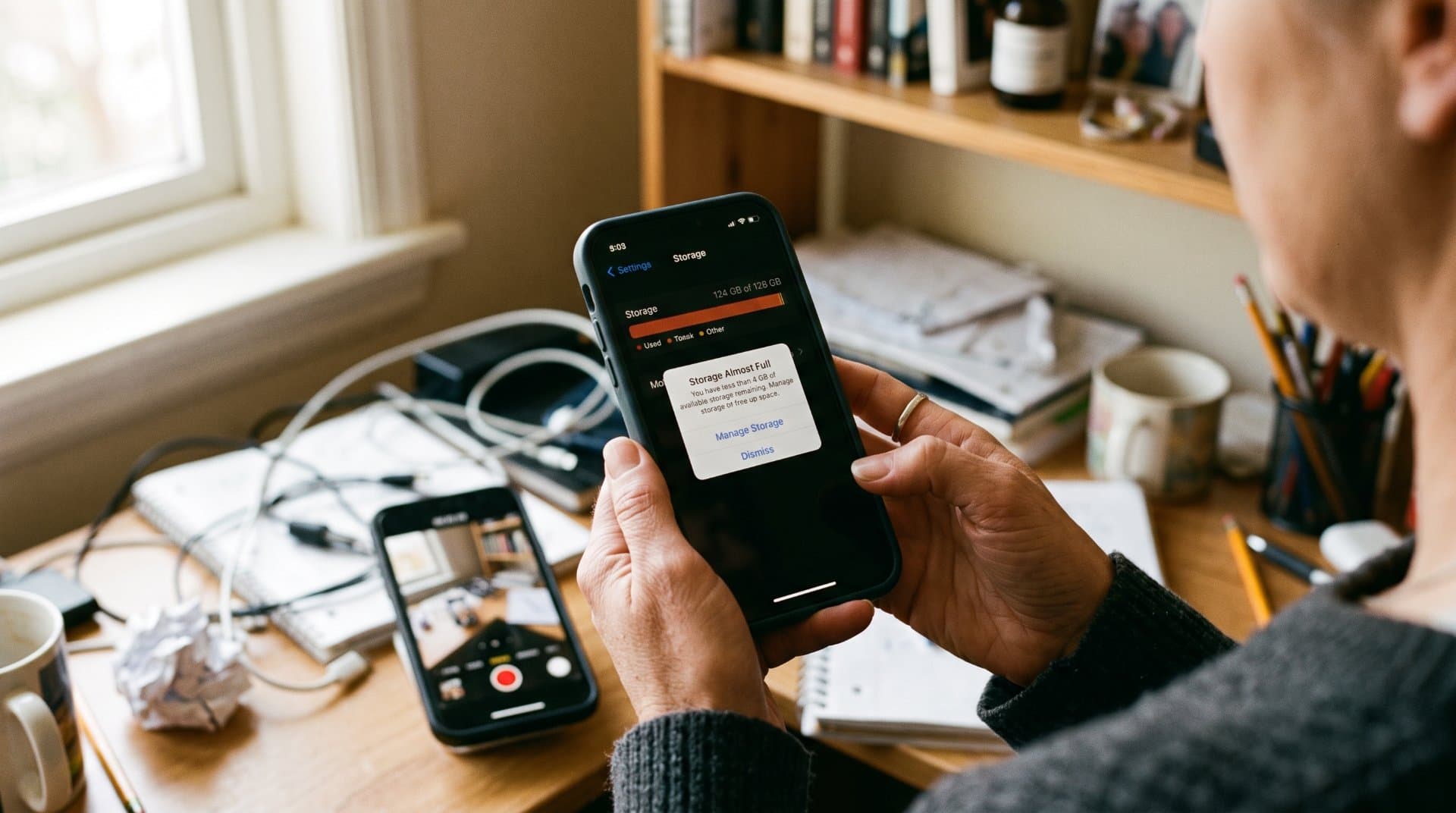
Why Your Phone Storage Fills Up So Quickly and How to Free Space
Explains why phone storage gets full even when you did not install anything new, including photos, app cache, System Data and hidden trash folders. Gives simple steps to free space on iPhone and Android and what to do when nothing seems to work.
View Point Spot1 hours ago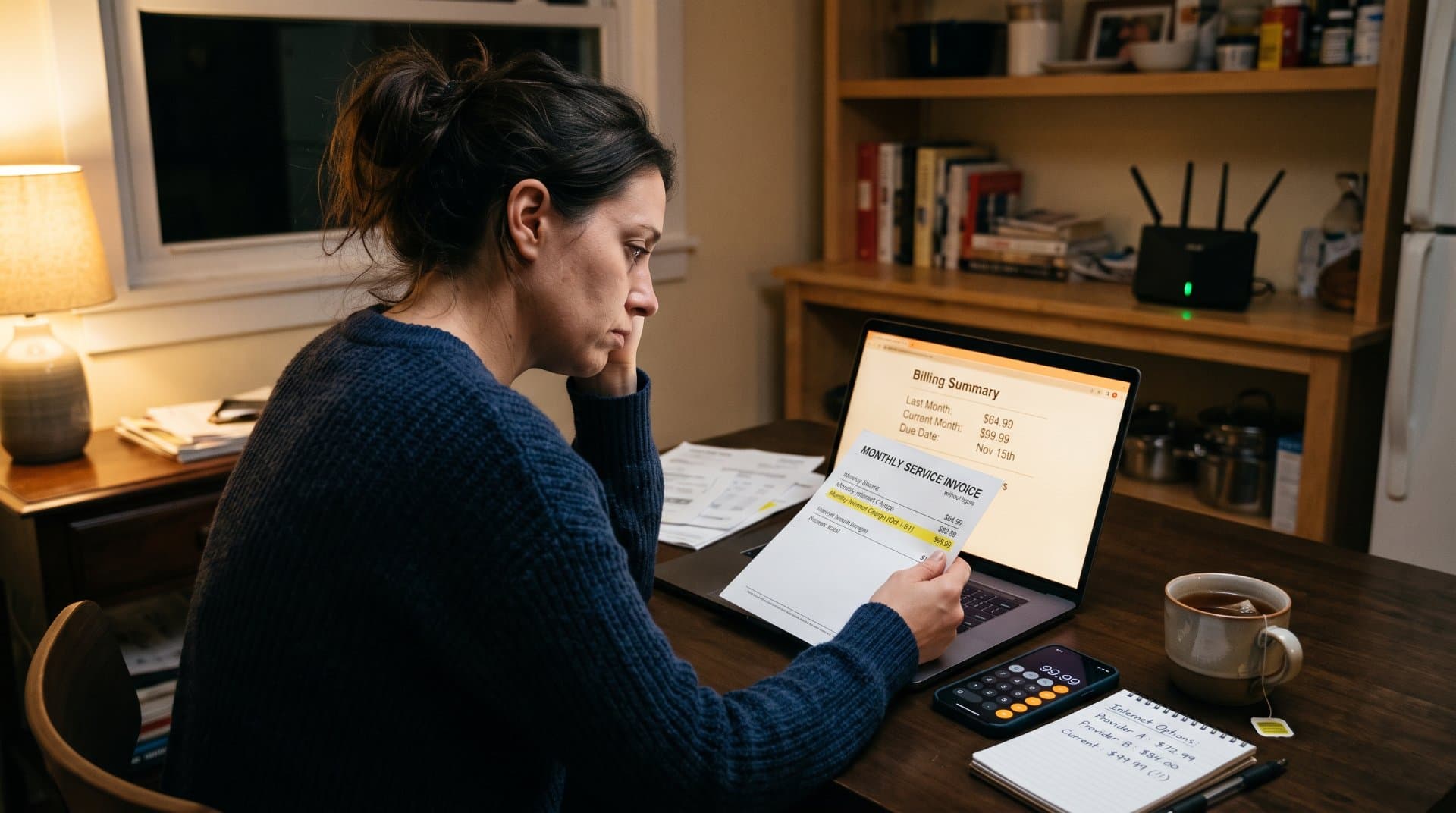
Internet Provider Keeps Raising Your Bill? Here Is What You Can Do
This article explains why internet providers raise prices again and again and what you can do about it. It covers reading your bill, finding the real reason for the increase, asking for a better deal, lowering your plan and switching provider. It also explains the mistakes people make when they negotiate.
View Point Spot2 hours ago
How Does Cloud Storage Actually Keep Your Files Safe?
Cloud storage relies on encryption, redundancy and access controls to protect your files. Here's how each layer works and where the real risks still are.
 Noman MakenSep 10, 2026
Reader Discussion (0)
No comments yet. Be the first to start the discussion!